Chrome DevTools MCP, or your own signed-in Chrome?
Out of the box, Chrome DevTools MCP opens a Chrome of its own with a fresh profile, so your agent starts signed out of everything. It can attach to your everyday Chrome instead, and then it reaches every window you have open. Tabhand gives each agent tabs of its own in the Chrome you’re signed in to, in the background.
npx tabhand setupFree and open source. Works with Claude Code, Codex, Cursor and 16 more. Nothing leaves your Mac.
A second Chrome, signed out
By default, Chrome DevTools MCP starts Chrome with a profile of its own, kept in ~/.cache/chrome-devtools-mcp. Your agent has to sign in to each site again in there, and the docs warn that “some accounts may prevent sign-in when the browser is controlled via WebDriver.”
That profile also takes one browser at a time: “Only one browser can use it at a time.” Start a second agent session and it can’t open the profile. The fix the docs give, --isolated, starts a throwaway profile, signed out again.
Tabhand doesn’t start a second Chrome. Every agent works in the one you use, where you’re already signed in.
Your Chrome, every window
To reach your real logins, Chrome DevTools MCP can attach to your running Chrome with --autoConnect. That takes Chrome 144 or later and remote debugging switched on at chrome://inspect. Chrome then shows a dialog each time the server asks to connect, and once it’s in, the docs say it “has access to all open windows” of that profile.
A Tabhand agent can only use the tabs it opened and the pages those open. Your tabs stay out of reach.
Behind you, not in front
Chrome DevTools MCP opens new pages in front unless the agent asks otherwise: the docs give the default as “foreground”. An open issue on its GitHub, from someone running several agents in one Chrome, asks for a way to change that, because each new page brought the window forward.
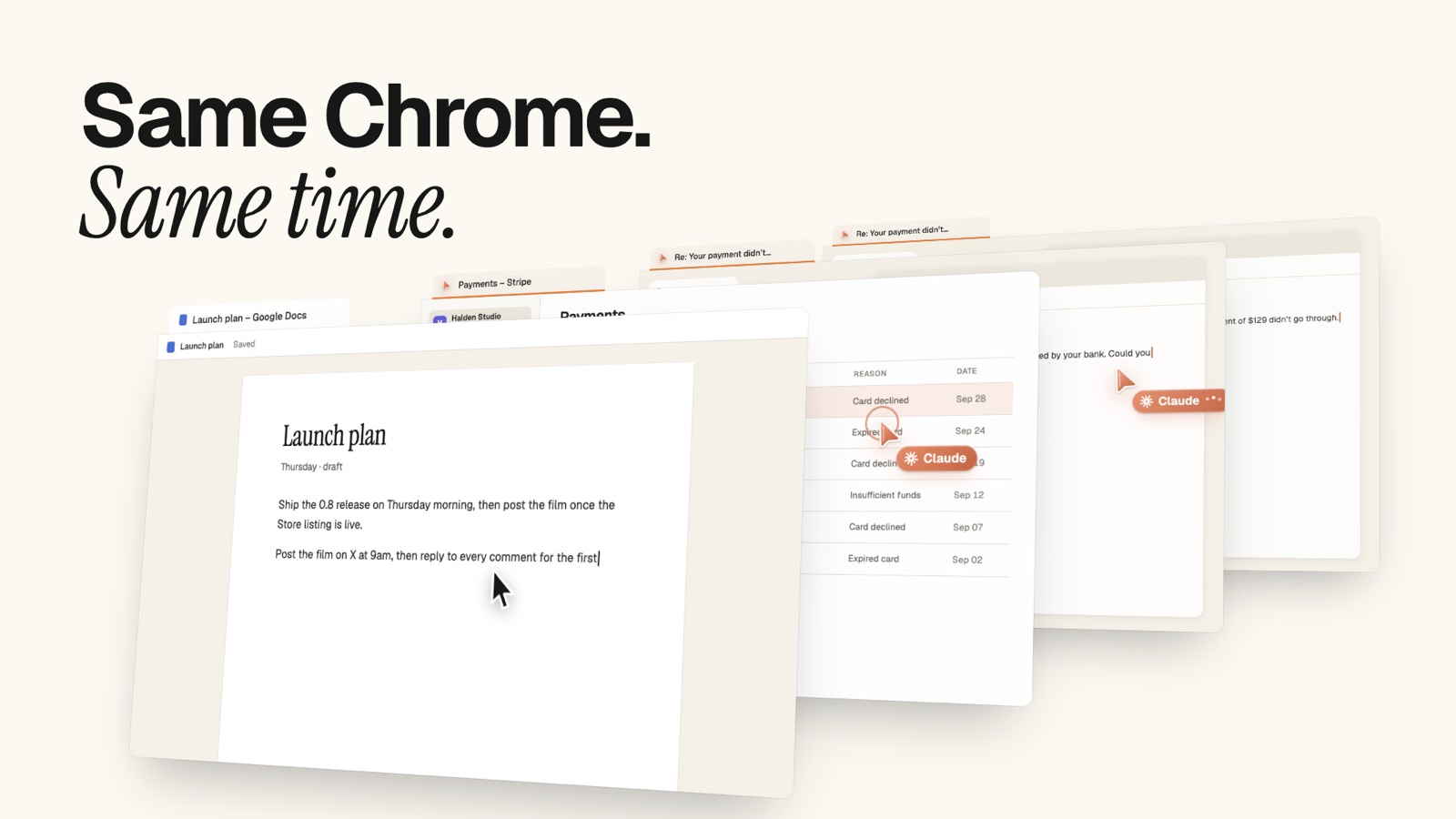
Tabhand opens every agent tab in the background, muted. Chrome stays where it was, and so does the tab you’re typing in.
A lane for each agent
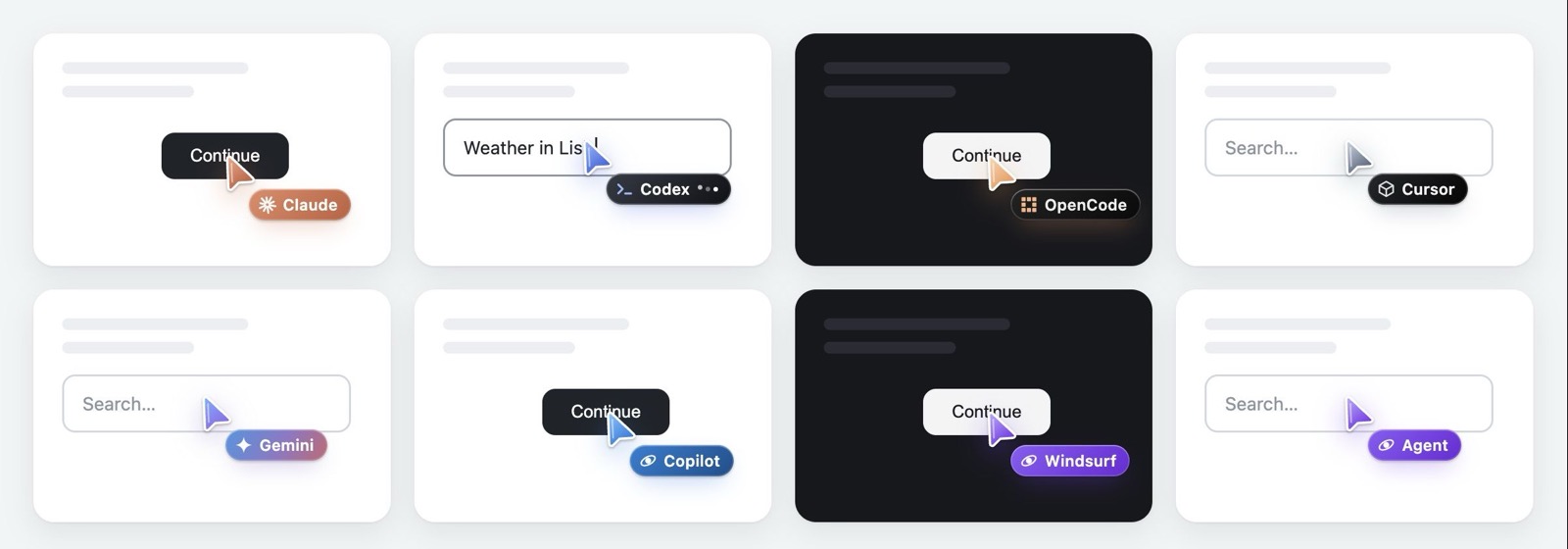
Run Claude Code and Codex at once and each gets its own tab group, color and cursor in Tabhand. Neither can touch the other’s tabs, and you can see at a glance who’s doing what.
Where Chrome DevTools MCP is ahead
It’s a debugger first, from the Chrome DevTools team, and it’s very good at that:
- Performance traces with LCP, INP and CLS, and Lighthouse audits.
- Network requests, console messages and memory snapshots.
- Windows, Linux and macOS.
Tabhand has none of those tools. For profiling and debugging the app you’re building on localhost, use Chrome DevTools MCP. For work in the sites you’re signed in to, use Tabhand. They’re separate MCP servers, so one agent can have both.
Side by side
| Tabhand | Chrome DevTools MCP | |
|---|---|---|
| Signed in from the start | ✓ | Sign in again, or attach |
| Agents kept to their own tabs | ✓ | Attached: every window |
| Background tabs by default | ✓ | — |
| Several agents in one Chrome, apart | ✓ | — |
| Performance traces and Lighthouse | — | ✓ |
| Network and console debugging | — | ✓ |
| Windows and Linux | — | ✓ |
Questions
Can Chrome DevTools MCP use my existing Chrome profile?
Yes, with --autoConnect on Chrome 144 or later, after you switch on remote debugging at chrome://inspect. It then has access to every open window in that profile.
Is Tabhand built on DevTools too? It drives its tabs through Chrome’s debugger, from a Chrome extension. The extension decides which tabs an agent can use, and it only ever attaches to the agent’s own.
Does Tabhand work with Claude Code? Yes, on any plan or API key. The Claude Code guide takes two minutes.
Give your agents your Chrome
npx tabhand setupFacts about Chrome DevTools MCP checked on October 27, 2026 against its README, advanced usage, configuration and tool reference docs, the Chrome team’s post on connecting to your browser session, and issue #2856. If something here is out of date, tell us.